We're Here To Help
Find answers, guides, and support for all your Leadengage needs.
FUB Commands
Follow Up Boss & Leadengage Dynamic Command Codes
These commands are dynamic — use exact formats shown within FUB Notes (Action Plans, Automations, or manual). Only one command per FUB note action. You can now schedule multiple texts per day (ex. [15min] and [2hr], or [now] and [3min])
| Command | What it does | Use Case / Examples |
|---|---|---|
| ⚡ Instant Send 24/7 | ||
| SMS | Sends the message immediately, right now, 24/7 without regard to business hours. | Use for any message that should fire instantly upon trigger. USE WITH CAUTION — we suggest only using this for new lead flow action plans in the first action without delay. |
| ⚡ Instant Send: Business Hours | ||
| [now] [scheduled] | Sends the message immediately, right now if within business hours. | Use for any message that should fire instantly upon trigger. Both commands behave identically. |
| ⏱ Delay by Minutes — [Xmin] (any number) | ||
| [2min] [5min] | Schedules the message to send after the specified number of minutes. | Perfect for creating a natural-feeling delay before the first message. Any whole number works — e.g. [2min], [5min], [15min], [30min]. |
| ⏱ Delay by Hours — [Xhr] (any number) | ||
| [1hr] [2hr] | Schedules the message to send after the specified number of hours. | Use when you want time for manual outreach before the automated text fires. Any whole number works — e.g. [1hr], [2hr], [6hr]. |
| 🕐 Exact Hour — [Xam] or [Xpm] | ||
| [9am] [1pm] | Schedules the message to send at the exact hour specified (on the hour). | Use to pin a message to a specific time of day within business hours. Any valid hour works — e.g. [9am], [11am], [1pm], [5pm], [7pm]. |
| 🕐 Exact Time + Minutes — [X:XXam] or [X:XXpm] | ||
| [9:15am] [1:33pm] | Schedules the message to send at the exact hour and minute specified. | Use for precise timing down to the minute within business hours. Any valid time works — e.g. [9:15am], [1:33pm], [6:45pm]. |
Follow Up Boss & Leadngage Command Codes
These are the ONLY commands available and must be used EXACTLY as you see them. Go To Guide ↗.
Action Plan Codes
[now] For SMS from 9:00AM-7:30PM
[9am] For SMS from 9:00AM-7:30PM
[11am] For SMS from 11:00AM-7:30PM
[1pm] For SMS from 1PM-7:30PM
[3pm] For SMS from 3PM-7:30PM
[5pm] For SMS from 5PM-7:30PM
[7pm] For SMS from 7PM-7:30PM
For each contact with a message, the message will queue and send at the earliest time for the time frame noted. If more texts for other contacts are also sending during the beginning of the time frame, then the send time may be delayed by a few minutes to protect your number.
*Saturday and Sunday action plan/delayed messages will send between 9:30 am - 7 pm of your time zone, if it falls after that window then it will send the next day.
Time Delays for Manual Notes & Action Plan SMS
[15min] 15 minute delay for SMS
[1hr] 1 hr delay for SMS
[2hr] 2 hour delay for SMS
*If delay falls outside of business hours, the text will send the next business day at 9 am.
Perfect for the first marketing SMS in an Action Plan, set a delay to make it more realistic.
Stop Commands for SMS
[delete] Stops a delayed message that has not been sent (and cancels all Leadngage workflows) OR use the FUB Leadngage Embedded App delete drop down option in the sidebar "delete SMS in queue".
[DND] Stops ALL future SMS messages from sending through the back end. If sent, your texts will still show in FUB & may count towards your message credits, but will not process in the back end.
Commands for Delayed SMS
[15min] 15 minute delay for SMS
[1hr] 1 hr delay for SMS
[2hr] 2 hour delay for SMS
If delay falls outside of business hours, the text will send the next business day at 9 am.
Perfect for the first marketing SMS in an Action Plan, set a delay to make it more realistic.
Time Commands for Action Plans
Add one of the following commands to your SMS Action Plans in place of the [SMS] command.
[11am]
[1pm]
[3pm]
[5pm]
[7pm]
Add a note with [delete] to stop a delayed message that has not yet sent or use the FUB Leadngage Embedded App "Delete sms in queue" drop down option in the sidebar.
FUB App: Message Codes
FB: Facebook instant response
IG: Instagram instant response
SMS: Instant SMS
Use the codes Above when sending replies in the FUB App. Create a note and start it will one of the following codes based on the channel the lead messaged you from and it will convert to a message.
STOP Commands for SMS
[delete]: Cancels a scheduled message that hasn’t been sent yet. Alternatively, you can use the “delete SMS in queue” option in the Leadngage Embedded App sidebar.
Use Cases:
1. It’s 10 am and you talked to a lead, but you have an 11 am message set to send that you need to cancel.
2. You set a text to send in 30 days but talked to the lead before then and need to cancel the text.
[DND]: Stops all future SMS messages from being sent. Note that texts will still show in Follow Up Boss (FUB) and count towards your message credits, but won’t be processed.
Use Cases:
1. A lead opts out of texts. To stay compliant, use the [DND] command to stop future marketing texts from reaching them.
2. You don’t want a lead to receive marketing texts from your Leadngage number. Set up automations to apply [DND] for specific new stages or tags.
Tag Triggers — Leadengage to Follow Up Boss
Use these tag triggers from Leadengage to Follow Up Boss
| Prefix | Use Case | Examples |
|---|---|---|
fub_ |
Add this to the beginning of any tag in Leadengage to transfer it to Follow Up Boss. |
fub_buyer1, fub_buyer2, fub_john, fub_renter, fub_low_credit |
Tag Triggers — Follow Up Boss to Leadengage
Use these tag triggers from Follow Up Boss to Leadengage
| Tag Prefix/Tag Trigger | Use case | Examples |
|---|---|---|
call_connect |
Use this tag to trigger a call bridge to the assigned agent. Assigned agent answers and presses 1 to call the lead. Great for use in new lead flow Automations in FUB. Note: FUB Assigned Agent must be mapped to a Leadengage user under “Config” tab in the FUB Embedded App for call to work. |
call_connect |
leadengage_ |
Add this to the beginning of any tag to transfer it to Leadengage. All plans can use this. Automation & Platform users can trigger workflows for lists of contacts. |
leadengage_workflow_1, leadengage_buyer, leadengage_john, leadengage_renter, leadengage_low_credit Old spelling also supported: leadngage_ |
leadengage_action_plan |
Mass apply action plans in FUB. System drips |
Apply FUB Automation to large smartlist contacts. Old spelling also supported: leadngage_action_plan |
leadengage_transfer |
Transfer contacts in bulk from FUB to Leadengage for texting/automations. Bulk transfers are low priority and may take time depending on server traffic. |
Bulk sync to Leadengage Old spelling also supported: leadngage_transfer |
leadengage_bulk_sms |
Send bulk SMS or add to automations. Bulk transfers are low priority and may take time depending on server traffic. |
Bulk text blast Old spelling also supported: leadngage_bulk_sms |
leadengage_fb_ads_add |
For users with Leadengage Workflows. Apply this tag in FUB to ADD contacts to your Facebook custom audiences. Must link FB Audience(s) in workflow. |
leadengage_fb_ads_add Old spelling also supported: fb_ads_leadngage_add |
leadengage_fb_ads_remove |
For users with Leadengage Workflows. Apply this tag in FUB to REMOVE contacts from your Facebook custom audiences. Must link FB Audience(s) in workflow. |
leadengage_fb_ads_remove Old spelling also supported: fb_ads_leadngage_remove |
review_request |
Send review requests to clients automatically via SMS. |
review_request |
leadengage_voice_drop |
For users with Leadengage workflows. Add this tag to trigger voice drops to lists of contacts or as part of a FUB Automation. Custom create any other tags to trigger workflows with different voicemails: leadengage_voice_drop_5, leadengage_vm_bob, leadengage_vm_home_value, leadengage_vm_zillow, or any custom leadengage_ tag you create. Suggested workflow setting time: 9am–7:30pm (Follows your Leadengage account timezone). |
leadengage_voice_drop Old spelling also supported: voice_drop_leadngage |
Leadengage Tags Added by Leadengage in FUB
| Tag Name | When is this Tag Applied? |
|---|---|
Leadngage Engaged |
Tag added to all incoming messages from all sources. This tag is removed when you reply through the Leadengage Widget in FUB or in FUB notes with Leadngage commands. |
facebook messenger engaged |
Tag added to all incoming Facebook Messenger leads. |
instagram chat engaged |
Tag added to all incoming Instagram message leads. |
textforinfo |
Added to anyone who texts in a Text-for-Info keyword plus the specific code texted. |
dnd |
If DND is enabled, a temporary “dnd” tag is added and later removed when the Do Not Disturb function turns on to block action plan and delayed texts. |
do_not_text |
Added if a lead replies “cancel,” “unsubscribe,” “stop,” “opt-out,” or “quit” to your Leadngage number. |
notext |
Added if a lead replies “cancel,” “unsubscribe,” “stop,” “opt-out,” or “quit” to your Leadngage number. |
optout |
Added if a lead replies “cancel,” “unsubscribe,” “stop,” “opt-out,” or “quit” to your Leadngage number. |
AI Tags
AI Tags are automatically applied based on conversation intent. Use these tags inside Follow Up Boss for Smart Lists, automations, and routing.
| Tag | Use Case |
|---|---|
| AI Control Tags (Enable / Disable AI) | |
ai_off |
If this tag is on a contact, AI will not engage. |
ai_on |
If you set up your preferences to only interact with leads with the tag ai_on, then this tag should be added to any contacts you want AI to engage with. |
| AI Intent Tags | |
ai_priority |
Indicates the AI determined this is a high priority lead due to a positive reply. |
ai_not_interested |
Indicates the AI determined that the lead is not interested. |
ai_opt_out |
Indicates the lead opted out of the conversation when the AI sent a message. |
ai_neutral |
Indicates the AI determined the lead’s response to be neutral. |
ai_needs_follow_up |
Indicates the AI determined the lead needs additional answers or follow up from you. |
Commands for Delayed SMS
[15min] 15 minute delay for SMS
[1hr] 1 hr delay for SMS
[2hr] 2 hour delay for SMS
If delay falls outside of business hours, the text will send the next business day at 9 am.
Perfect for the first marketing SMS in an Action Plan, set a delay to make it more realistic.
Time Commands for Action Plans
Add one of the following commands to your SMS Action Plans in place of the [SMS] command.
[11am]
[1pm]
[3pm]
[5pm]
[7pm]
Add a note with [delete] to stop a delayed message that has not yet sent or use the FUB Leadngage Embedded App "Delete sms in queue" drop down option in the sidebar.
FUB App: Message Codes
FB: Facebook instant response
IG: Instagram instant response
SMS: Instant SMS
Use the codes Above when sending replies in the FUB App. Create a note and start it will one of the following codes based on the channel the lead messaged you from and it will convert to a message.
STOP Commands for SMS
[delete]: Cancels a scheduled message that hasn’t been sent yet. Alternatively, you can use the “delete SMS in queue” option in the Leadngage Embedded App sidebar.
Use Cases:
1. It’s 10 am and you talked to a lead, but you have an 11 am message set to send that you need to cancel.
2. You set a text to send in 30 days but talked to the lead before then and need to cancel the text.
[DND]: Stops all future SMS messages from being sent. Note that texts will still show in Follow Up Boss (FUB) and count towards your message credits, but won’t be processed.
Use Cases:
1. A lead opts out of texts. To stay compliant, use the [DND] command to stop future marketing texts from reaching them.
2. You don’t want a lead to receive marketing texts from your Leadngage number. Set up automations to apply [DND] for specific new stages or tags.
Follow Up Boss Action Plans & Automations
NEW FUB Automations 2.0 for Leadengage
Jump to Commands and Tags
Use these in action plans to automate processes.
Generic Buyer SMS Action Plan
Birthday Text Action Plan
OPT Out Action Plan
Back to Website Action Plan
Text your leads who have revisited your website to strike a conversation.
Text For Info Action Plan
Use this to get your Text For info Started
Bulk SMS
Use this link to find our step-by-step guide on how to send bulk SMS
Voice Drop Guide
Use this link to find our step-by-step guide on how to send Leadengage voice drops (note, any custom tag can also be used i.e. leadengage_zillow_vm)
Mass Apply Action Plans (Database ReEngagement)
To drip apply action plans, add the tag
leadngage_action_plan to any number of contacts. [Best for Messaging Plan users without workflow access]
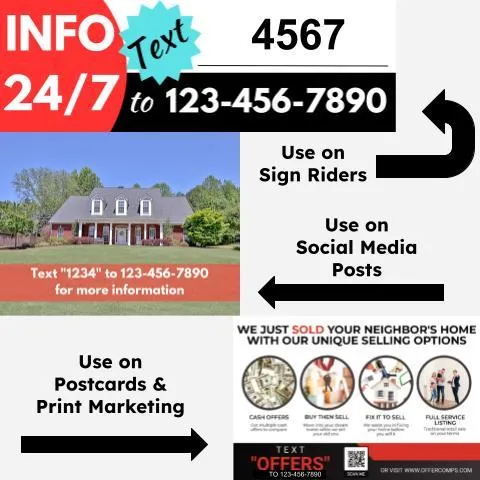
Text For Info
Set Up Codes:
Choose codes from the list provided in the link below. Make sure the code is entered exactly as shown (case-sensitive). When a lead sends the code, it triggers a tag matching the code’s label.
View the available codes here.Create Automations:
Build an automation AND action plan for each code. Ensure the tag label exactly matches the code.
Use this example template automation & action plan to get started.Canva Templates & Other Resources:
TCPA Compliance
TCPA Checklist
Do Not Contact Registry: Never text or call anyone on the National DNC Registry.
Quiet Hours: Avoid texting or calling contacts before 8 am or after 9 pm, local time.
Consent Requirements: Conversational messages require implied consent, informational messages require express consent, and sales/promotional/offer messages require express written consent.
Opt-Out Options: Always provide an opt-out option, such as "STOP".
Do Not Contact List: Maintain a "Do Not Contact" list for all business contacts.
Telemarketing Calls: Disconnect any unanswered telemarketing call after at least 15 seconds or four rings.
Things to Avoid
Do not text or call contacts from purchased lists.
Do not contact anyone who hasn't opted in.
How We Assist with TCPA Guidelines
Opt Out Language: First automated texts must include an opt-out option (e.g., “STOP”). If missed, the system adds “If you’d rather not be texted, just reply stop.” automatically.
Quiet Hours: We only send your action plan messages 9 am to 7:30 pm week days, and 11:30 am to 5 pm weekends, we skip major US holidays and send the next day.
Verification: Each number texted through Leadengage is verified with Twilio for a $0.005 fee. Non-textable numbers (e.g., landlines) prevent SMS costs.
More TCPA Resources
TCPA Rules from FCC https://www.fcc.gov/sites/default/files/tcpa-rules.pdf
TCPA World https://tcpaworld.com/
Make sure your lead sources include express written consent for SMS. Opt-In model below from TCPA World showing the 9 part test for express written consent.
Disclaimer: Please note that this is for informational purposes only. It’s not meant to substitute for advice from qualified legal counsel. Please seek counsel prior to calling or texting your contacts. Generally, it's suggested that you always have express written consent to contact any leads. The guidelines are found here 47 CFR § 64.1200.
Frequently Asked Questions
Everything you need to know about Leadengage
Leadengage is an AI-powered marketing and communication platform built specifically for real estate agents, teams, and brokerages. It supercharges Follow Up Boss with automated drip texting, Voice AI, social media message integration, broadcast campaigns, review automation, and dozens of other tools — all designed to help you convert more leads and close more deals from the database you already have.
Trusted by 500+ FUB teams across the U.S. and Canada.
Most of Leadengage's core features — including drip texting through FUB Automations, the FUB Embedded App, and social message integration — are built around Follow Up Boss. However, if you're not currently using FUB, our Platform Plan gives you access to a wide range of standalone features including AI automations, website and funnel builder, social media planner, email marketing, and more.
Leadengage is purpose-built for FUB users and delivers the most value when connected to your FUB account.
Getting started is simple! After signing up, you'll connect your Follow Up Boss account, complete a one-time A2P/10DLC number registration (required for SMS compliance), and install the Leadengage Embedded App in FUB. Most agents are up and running within 3 business days after A2P approval.
Visit leadengage.com/onboarding for our full setup guide, or reach out to our team for personalized help. For done-for-you setup and FUB Automation creation, we recommend working with Kee Technology Solutions.
Yes! Leadengage works in both the United States and Canada. Canadian agents and teams can use all core features including drip texting, social message integration, and the FUB Embedded App. Local Canadian phone numbers are used for messaging, and applicable carrier compliance rules apply.
A2P/10DLC registration is not required for Canadian numbers, but is available if you need to text U.S.-based numbers.
Leadengage offers four main plans to fit solo agents, small teams, and large brokerages:
- Messaging Plan — Automated drip texting and FUB integration for solo agents and small teams. Up to 5 users. Includes a monthly usage credit. 7-day free trial.
- Automation Plan — Everything in Messaging, plus AI automations, ad manager, social planner, and advanced tools. Up to 15 users. Includes a monthly usage credit. 14-day free trial.
- All-In-One Platform Plan — Best value for mid to large teams. Replaces multiple tools with one comprehensive platform. Up to 30 users. Includes a monthly usage credit. 14-day free trial.
- Enterprise — Custom plan for large teams and brokerages with unlimited users and custom usage. Contact us for details.
All plans are available monthly or annually. Annual plans save the equivalent of 2 months. Visit our pricing page for current rates and a full plan comparison.
Conversational AI is available as an add-on on all plans (select the AI Agents plan at checkout alongside your base plan). Leadengage Blue plans with iMessage phone service can be found at leadengageblue.com.
Yes! The Messaging Plan comes with a 7-day free trial, and both the Automation and Platform Plans include a 14-day free trial. No setup required to start.
Please note: any usage charges (SMS, calls, AI, etc.) incurred during your trial are not covered by included wallet credits and will be billed separately. The trial ends early if you'd like our team to submit your A2P/10DLC registration.
Free trials are not available for the Leadengage Blue (iMessage) or AI Agent add-on plans.
Yes — monthly plans have no long-term contracts and can be canceled at any time. Annual plans are billed upfront and provide access for the full year. If you request early cancellation on an annual plan, any refund will be prorated based on the monthly rate for months used.
Note that Leadengage Blue (iMessage integration) requires a 3-month minimum commitment. If you have questions about your plan or cancellation, contact our support team at leadengage.com/contact-us.
No. Leadengage charges one flat subscription fee per Follow Up Boss account — regardless of how many FUB users you have. All users within your FUB account get access to the Leadengage Embedded App and drip texting through FUB Automations at no extra cost. Leadengage platform access and the Call Connect feature are limited to the user count included in your plan (Messaging – 5 users, Automation – 15 users, Platform – 30 users).
The only other variable cost that may apply is if your team's messaging volume exceeds your plan's included monthly wallet credits. Many teams never exceed their included credits. Visit leadengage.com/pricing for credit amounts by plan and leadengage.com/usage for current usage rates.
We recommend limiting full platform access (leads, billing, and communications) to the team owner and admin/operations manager only.
Yes — Leadengage is purpose-built for Follow Up Boss. It includes an Embedded App within the FUB sidebar for quick access to features, enables automated drip texting directly inside your FUB Automations, and routes incoming messages from social media and your website chat widget into your FUB contact records. Most Leadengage features work through FUB notes, which are converted into SMS messages that appear as Inbox App Conversation texts in Follow Up Boss.
Not on Follow Up Boss? The Platform Plan gives you access to a full suite of standalone features.
Leadengage works inside Follow Up Boss by recognizing special command codes placed in your FUB Automation notes. To send a text, add the [SMS] command at the start of a note, followed by your message. For example:
When the automation runs, Leadengage sends the message through your Leadengage number, automatically filling in merge fields and removing the [SMS] tag. Texts are delivered during smart send windows:
- Daily send window: 9:15 am – 7:45 pm (your local time zone)
- Messages scheduled outside this window are held and sent the next morning at 9:15 am
- Texts are also held on holidays or on any days of the week you've set to skip in your FUB Embedded App "User" preferences, and delivered the next business day
You can also schedule texts with timed delays — [15min], [1hr], [2hr] — or at specific times of day such as [9:30am] or [1pm] using additional timing commands. For a full list of commands, visit leadengage.com/help.
Yes! Through our Leadengage Blue product, you can send and receive iMessages directly within Follow Up Boss. This gives your messages a more personal, blue-bubble appearance and can improve engagement by bypassing standard SMS carrier filtering.
iMessage integration is available as an add-on or standalone plan and requires a 3-month minimum commitment. Learn more at leadengageblue.com.
SMS messages are delivered in segments. One standard segment is up to 160 characters of plain text. If your message is longer than 160 characters, it's automatically split into multiple segments — and each segment counts toward your usage credits. A few things to keep in mind:
- Special characters — like smart quotes, em dashes, or emojis — trigger Unicode encoding, which reduces the per-segment character limit to 70 characters.
- Most standard conversational text messages fit within one or two segments.
- Usage credits are deducted per segment sent, not per message.
Tip: Keeping your messages concise and avoiding special characters helps stretch your included monthly credits further.
A2P (Application-to-Person) refers to automated text messages sent from software to mobile devices — which is exactly how Leadengage sends your drip texts and campaigns. 10DLC (10-Digit Long Code) is the carrier registration system required by all major U.S. carriers for A2P messaging.
When you sign up, you'll complete a one-time 10DLC registration to verify your business identity with the carriers. This is not unique to Leadengage — it's an industry-wide requirement for all SMS platforms. Registration improves message deliverability for your business and helps protect consumers from spam.
Our onboarding guide at leadengage.com/onboarding walks you through the full registration process.
Every Leadengage plan includes a monthly Wallet Credit that covers the cost of communications and AI features — including SMS, phone calls, voicemail drops, email, and AI-powered conversations. Credit amounts vary by plan — visit leadengage.com/pricing for a full breakdown.
Credits are deducted as you use features. Higher-tier plans carry lower per-use rates, so your credits go further dollar-for-dollar. Many agents and teams never exceed their included credits. You can monitor your usage balance in your account dashboard and view current rates at leadengage.com/usage.
Important: Usage charges incurred during your free trial period are not covered by wallet credits and will be billed separately.
If your team exceeds your included Wallet Credit, additional usage is billed automatically at standard carrier and AI processing rates. There are no surprise fees, no penalties, and no interruptions to your service — you simply continue as normal and pay only for the additional usage you actually consume.
Platform Plan members enjoy the lowest overage rates. You can review all usage pricing at leadengage.com/usage and monitor your balance anytime in your account dashboard.
Social Messages to Follow Up Boss
Leadengage currently supports one Facebook Business login to connect multiple pages, any Instagram Professional accounts connected to that Facebook page, and one Google login with as many Business Profiles. Messages from Facebook and Instagram appear directly in your FUB contact records, and you can reply using the Leadengage Embedded App or mobile shortcuts. Our auto-tagging feature lets you automatically route incoming social leads to specific team members.
Note: Personal social profiles are not supported.
Social Planner (Automation & Platform Plans)
The Social Planner lets you connect and post to multiple accounts simultaneously. Supported platforms:
- Facebook Business Pages & Reels
- Instagram Professional Accounts (Posts, Stories, and Reels)
- Google My Business (up to 10 locations)
- LinkedIn Pages and Profiles
- TikTok personal profiles (business accounts coming soon)
You can post immediately or schedule content in advance, and add an initial follow-up comment on Instagram and Facebook posts.
No limit. You can add the Leadengage Chat Widget to as many websites or pages as you like. You can also create and customize multiple chat widgets — each with different branding, messaging, or lead routing — for different sites, pages, or purposes. Conversations that start through the chat widget forms are converted to SMS and routed into Follow Up Boss.
Not by default — you stay in control of your conversations. Leadengage handles the sending and timing of your drip texts based on your FUB Automations, but when a lead replies, you decide how to respond. You can manage replies directly in Follow Up Boss, use the Leadengage Embedded App, or respond from the mobile app.
However, if you'd like AI to handle initial conversations on your behalf, you can add Conversation AI as an optional add-on. Conversation AI can qualify leads, answer common questions, and book appointments — 24/7 without any manual involvement. Visit our pricing page for add-on details.
Conversation AI is an optional add-on that uses AI to respond to incoming messages on your behalf. When a lead replies to a drip text or reaches out through any of your connected channels, the AI takes over the conversation — qualifying the prospect, answering frequently asked questions, and booking appointments when the lead is ready.
AI usage is billed from your monthly wallet credits at variable rates based on the model selected. Visit leadengage.com/pricing for add-on pricing and leadengage.com/usage for full AI rate details.